

By Shenzhen Smartlink Electronics Co., Ltd.
Introduction
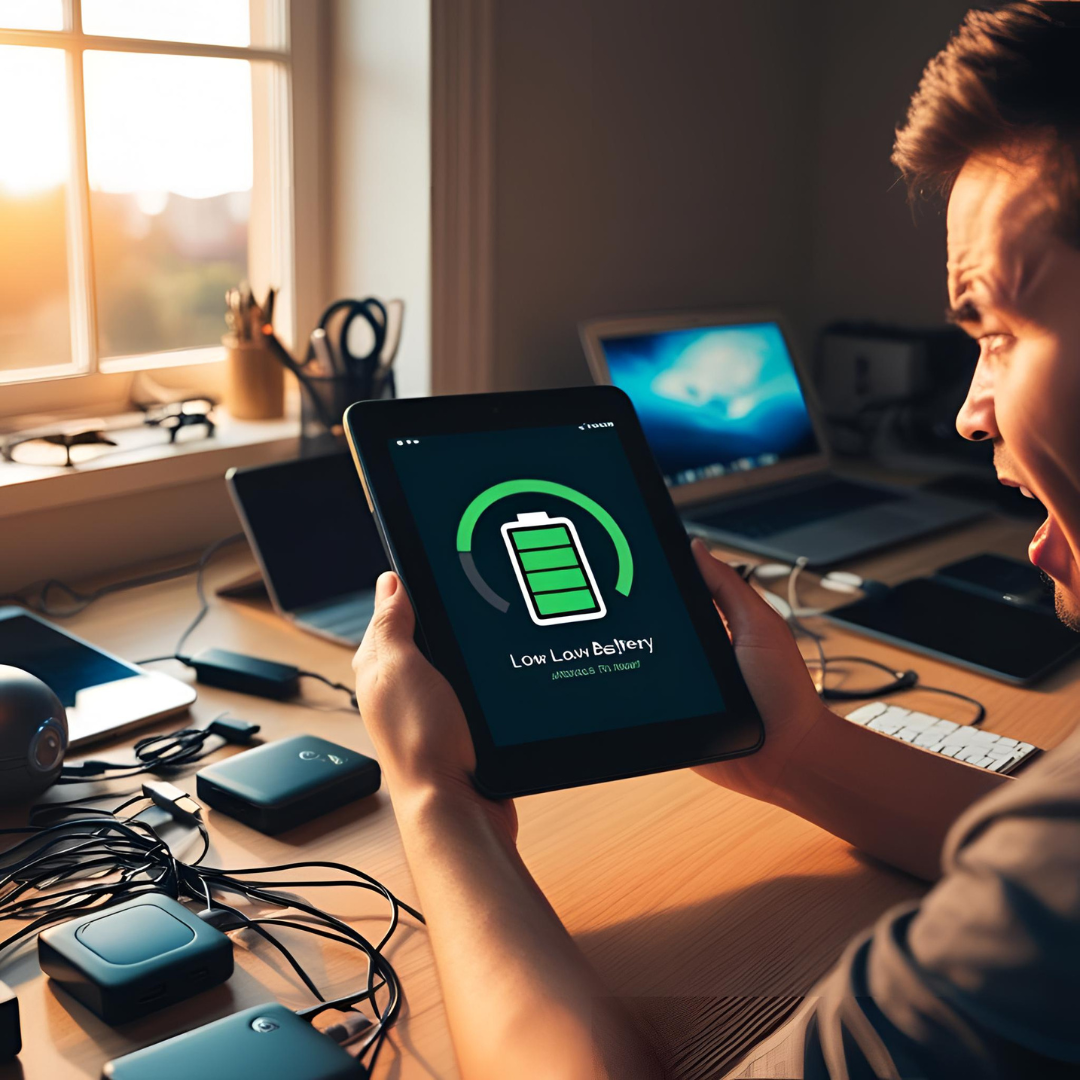
Is your Android tablet battery dying too quickly? Frustrating, right? Whether you use your tablet for work, streaming, or gaming, a short battery life can ruin the experience.
At Smartlink Electronics, we know battery issues are a top concern—so we’ve compiled 7 proven fixes to extend your tablet’s battery life instantly. No tech skills required!
Why Does My Android Tablet Battery Drain So Fast?
Before diving into solutions, let’s understand the common culprits:
 Background apps running unnecessarily
Brightness set too high
Outdated software causing power leaks
Weak Wi-Fi/4G signal forcing the device to work harder
Old battery (if your tablet is 3+ years old)
Now, let’s fix it!
7 Fixes to Stop Battery Drain on Your Android Tablet
1. Reduce Screen Brightness & Timeout
 Problem: A bright screen consumes 30%+ battery.
Fix:
- Lower brightness to ~50% or enable auto-brightness.
- Set screen timeout to 30 seconds or 1 minute.
 Pro Tip: Use dark mode (if supported) to save power on AMOLED screens.
2. Close or Restrict Background Apps
Problem: Apps like Facebook, Google Maps, and email clients drain battery in the background.
Fix:
- Swipe up (or go to Settings > Apps) and force-stop unused apps.
- Restrict background activity (Settings > Battery > App power management).
Pro Tip: Use “Lite” versions of apps (e.g., Facebook Lite) for better efficiency.
3. Turn Off Unnecessary Connectivity Features
Problem: Bluetooth, GPS, and Wi-Fi scanning drain power when not in use.
Fix:
- Disable Bluetooth, NFC, and GPS when idle.
- Turn off Wi-Fi/4G if you’re offline.
Pro Tip: Enable “Airplane mode” in low-signal areas to prevent battery drain.
4. Update Your Tablet’s Software
Problem: Outdated Android OS can have battery-draining bugs.
Fix:
- Go to Settings > System > Software Update and install the latest version.
Pro Tip: Manufacturers like Samsung, Lenovo, and Smartlink release optimizations in updates.
5. Check for Battery-Hungry Apps
Problem: Some apps (games, social media, video apps) are power hogs.
Fix:
- Go to Settings > Battery > Battery usage to identify culprits.
- Uninstall or restrict problematic apps.
Pro Tip: Use battery saver mode (under Settings > Battery) for emergency power saving.
6. Disable Auto-Sync & Notifications
Problem: Constant email, social media, and cloud syncs drain battery.
Fix:
- Turn off auto-sync (Settings > Accounts > Auto-sync data).
- Disable unnecessary notifications (Settings > Apps & Notifications).
Pro Tip: Manually sync important apps (like Gmail) only when needed.
7. Replace the Battery (If Old or Damaged)
Problem: If your tablet is 3+ years old, the battery may be degraded.
Fix:
- Get a replacement battery from the manufacturer or a trusted repair shop.
- Consider upgrading to a new tablet if repairs are costly.
Pro Tip: Smartlink’s latest tablets feature long-lasting 8000mAh+ batteries—check them out here!
Final Thoughts
A dying tablet battery doesn’t mean you need a new device—try these fixes first! If your tablet is still struggling, it might be time for an upgrade.
 Need a high-capacity Android tablet? Explore Smartlink’s energy-efficient models with all-day battery life for work and play!
